Creating Items with the Universal Create Button
Use the Create button to add Rocks, To-Dos, Issues, and Headlines from anywhere in the platform without navigating to each tool.

Written by Tommy Mains
Updated at March 11th, 2026
-
 Insights
-
 Data
Data
-
 Rocks
Rocks
-
 To-Dos
-
 Issues
-
 Meetings
-
 Headlines
-
 Vision
-
 Org Chart
-
 1-on-1
-
 Directory
-
 Knowledge Portal
-
 Assessments
-
 Integrations
-
 Account Options and Troubleshooting
-
 Mobile
-
 Partner Hub
-
 Maz
Maz
Table of Contents
How to Create Items Quickly Using the Create Button in Ninety
The Create button gives every Ninety user a fast, context-aware way to add new items from anywhere in the platform. Available to all roles (Owner, Admin, Manager, Coach, Observer, and Team Member), the button appears in the upper-right corner of every page (except in the Knowledge Portal).
By default, clicking Create opens an Issue form, and the default item type is automatically updated based on your current tool page. For example, navigating to the To-Dos tool and clicking Create defaults to a new To-Do.
Creating a new item
To create an item from any page in Ninety:
- Click Create in the upper-right corner.
- Use the dropdown to select the item type: Issue, Rock, To-Do, Headline, or Cascading Message.
- (Optional) Click the profile image to assign the item to a team member.
- Fill in the item's details:
- Title.
- Description.
- Due Date.
- Team.
- Click Create [Item Name] to save.
Tip: You can minimize the Create pop-up by clicking the minimize button or clicking anywhere on the page behind the window. Use the expand or maximize button to return to editing at any time.
Video Overview

Editing an item's details after creation
After creating an item (Issue, Rock, To-Do, Headline, or Cascading Message), you can update its details at any time by clicking the item's row to open its details card. The sections below cover the most common edits.
Assigning to another user
To reassign an existing item to a different team member:
- Click the intended tool from the left navigation.
- Click the item's row to open its details card.
- Click the profile image in the top-right corner of the details card.
- Select a different team member.
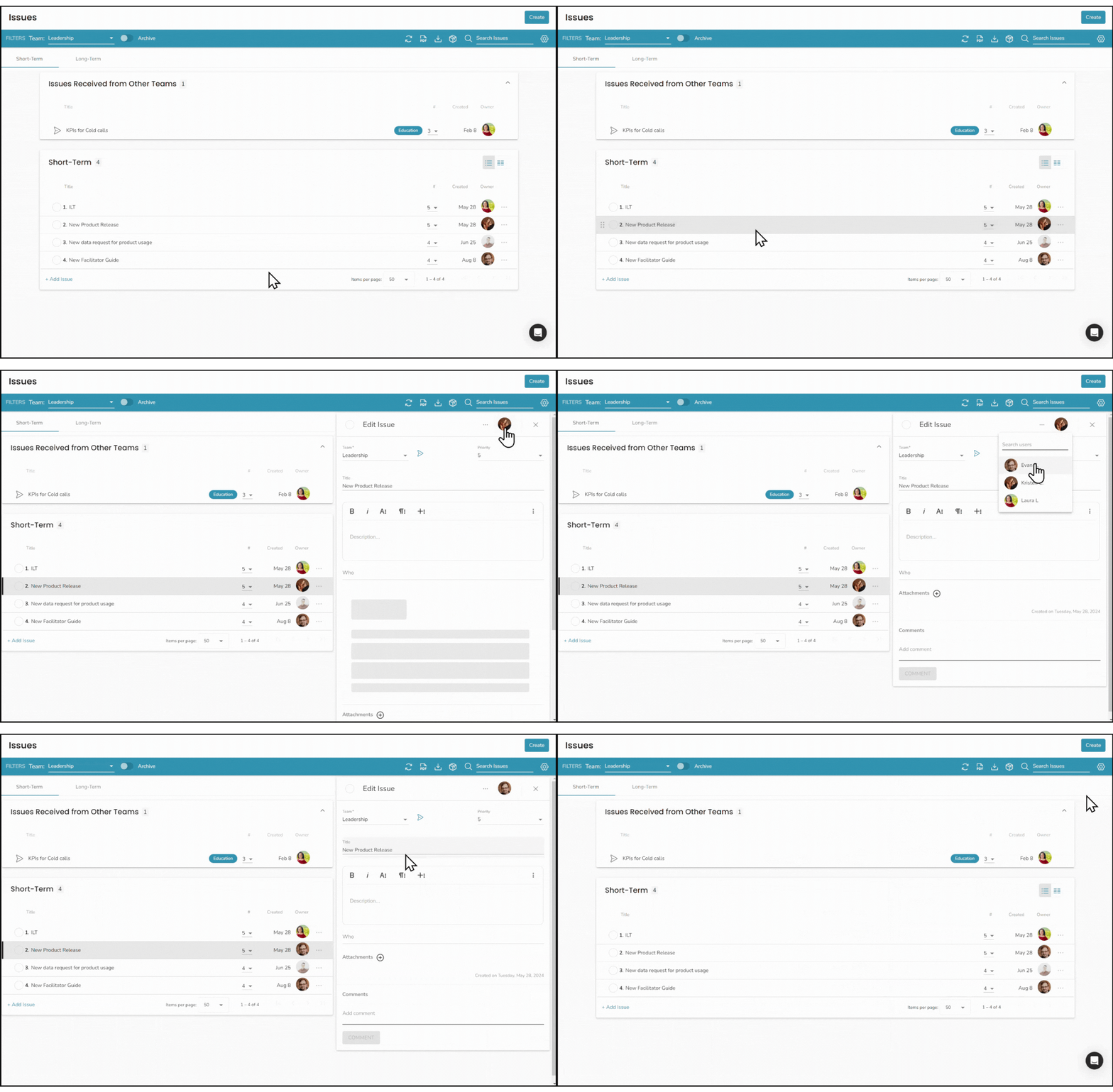
Note: Once a To-Do is created, it can only be reassigned to a single user. However, when creating a new To-Do or a linked To-Do from an existing item, you can select multiple team members (each will receive their own copy).
Changing an item's team
When you need an item to be visible to users on a different team, you can reassign it to another team from the item's details card.
- Click the item's row to open its details card.
- Click the Team dropdown.
- Select the destination team from your organization.
- (Optional) Reassign the item to a user from the newly selected team.
Important: Changing an item's team removes it from the original team's tool. To keep the item on both teams, create a linked item instead, which generates a copy for the other team while preserving the original.
Adding a Rock to multiple teams
Rocks (your 90-day priorities) can be shared across any team you belong to. Making Rocks visible to multiple teams improves cross-team transparency and supports Milestone assignment.
- Select the Rock you want to share.
- Click the Add to Other Teams dropdown.
- Select as many teams as needed.
Troubleshooting
Issue: The Create button opens the wrong item type. Solution: The Create button defaults to the item type matching your current tool page. Use the dropdown inside the Create pop-up to manually select a different item type.
Issue: A To-Do was created, but cannot be reassigned to multiple users. Solution: Existing To-Dos can only be assigned to a single user. To distribute a task to multiple team members, create a new linked To-Do from the original item — each selected team member will receive their own copy.
Issue: An item disappeared after being moved to a different team. Solution: Removing an item from a team removes it from the original team's view. Navigate to the destination team's tool to find it. If you need the item to appear on both teams, use the linked item feature instead of changing teams.
If the issue persists, contact support.
Frequently Asked Questions (FAQs)
What's the difference between short- and long-term Issues?
Short-term Issues are problems, obstacles, ideas, or opportunities your team addresses during weekly Level 10 Meetings (L10s) using the IDS® (Identify, Discuss, Solve) process.
Long-term Issues (sometimes called LTIs) are items that don't have priority this quarter. Your team will revisit them at the next Quarterly or Annual Meeting, at which point they may become Rocks, remain LTIs, or be resolved.
Why does the Create button default to a different item type?
The Create button is context-aware. It defaults to the item type that matches the tool page you're currently on. If you're on the Issues tool, it defaults to an Issue; on the Rocks tool, it defaults to a Rock; and so on. You can always override the default using the item-type dropdown.